OPC Data Acquisition

| OPC Data Acquisition | |
Genesis OPC Explorer 3.1 |
Genesis OPC Explorer 3.1 Menu Genesis OPC Explorer 3.1 Fast Track What's New in Release 3.0 Feedback and Awards Download Counters Download Genesis OPC Explorer 3.1 Safe Use of Genesis OPC Explorer 3.1 Genesis History Genesis OPC Explorer Setup Select OPC Server Manage OPC Groups Manage Acquired OPC Items Manage Calculated OPC Items Load OPC Project Save OPC Project Close OPC Project Data Acquisition and Storage Start Data Acquisition Resume Data Acquisition Stop Data Acquisition Display Performance Data Acquisition Data Matrix OPC Data Listing Display of OPC Data Listing Export OPC Data Export to Clipboard Toggle Performance Display Configure Types Color OPC Data Charting Display of OPC Data Chart Set Chart Series Colour Set Chart Title Options Manipulate Chart Display Set Series Selection Set Chart Axis Set Chart Legends Save Chart Image as File Save Chart Image to Clipboard Enable Cursor Data Toggle Server Data Display Registration and Support Register Genesis OPC Explorer 3.1 Support of Genesis OPC Explorer 3.1 Register Support of Genesis OPC Explorer 3.1
|
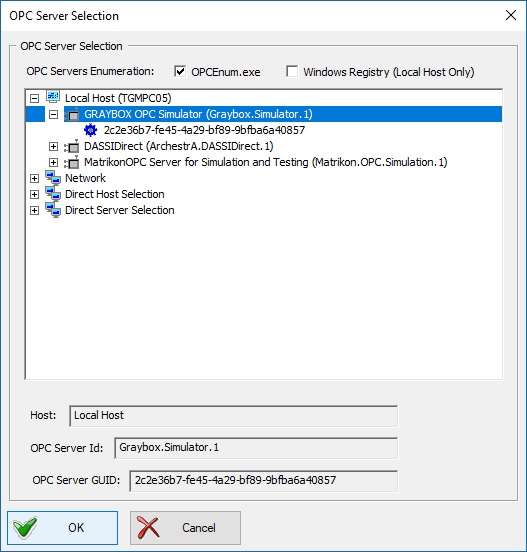
OPC Server Selection
The first step of any project of OPC Data Acquisition is the OPC Server selection. Genesis OPC Explorer 3.1 provides four ways to select an OPC Server:
Selection of a Network OPC Server Selection of an OPC Server from Direct Host Selection Direct Selection of an OPC Server |
Tell your Friends about Genesis OPC Explorer 3.1 Visitors Count: 35117 |
|||||||||||||||||||||||||||||