OPC Data Acquisition

| OPC Data Acquisition | |
Genesis OPC Explorer 3.1 |
Genesis OPC Explorer 3.1 Menu Genesis OPC Explorer 3.1 Fast Track What's New in Release 3.0 Feedback and Awards Download Counters Download Genesis OPC Explorer 3.1 Safe Use of Genesis OPC Explorer 3.1 Genesis History Genesis OPC Explorer Setup Select OPC Server Manage OPC Groups Manage Acquired OPC Items Manage Calculated OPC Items Load OPC Project Save OPC Project Close OPC Project Data Acquisition and Storage Start Data Acquisition Resume Data Acquisition Stop Data Acquisition Display Performance Data Acquisition Data Matrix OPC Data Listing Display of OPC Data Listing Export OPC Data Export to Clipboard Toggle Performance Display Configure Types Color OPC Data Charting Display of OPC Data Chart Set Chart Series Colour Set Chart Title Options Manipulate Chart Display Set Series Selection Set Chart Axis Set Chart Legends Save Chart Image as File Save Chart Image to Clipboard Enable Cursor Data Toggle Server Data Display Registration and Support Register Genesis OPC Explorer 3.1 Support of Genesis OPC Explorer 3.1 Register Support of Genesis OPC Explorer 3.1
|
Addition, Modification and Removal of OPC Group
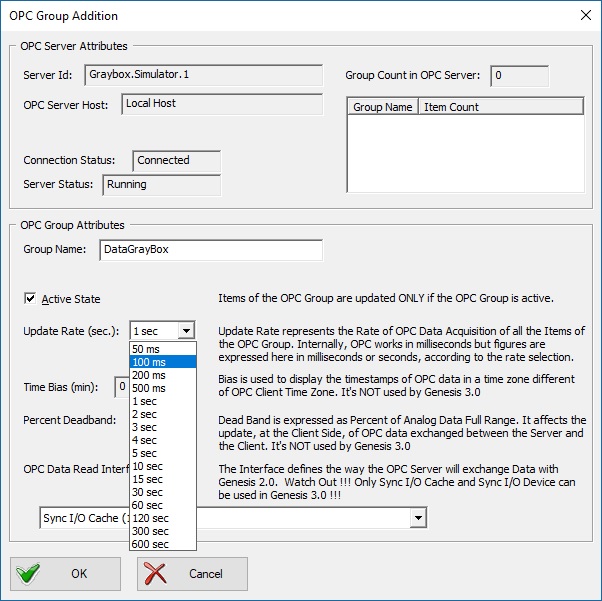
Adding an OPC Group requires beforehand the selection of an OPC Server. (click here to get details on selection of an OPC Server) 1. Addition of OPC Group After OPC Server Selection, the second step is the creation of OPC Group(s). As the OPC Server is the container of the OPC groups, the OPC Groups are containers of OPC Items. The OPC Group is only a way to organize the OPC Items and maintains common attributes of contained OPC items, such as the update rate. Two methods are available to start the OPC Group Addition:

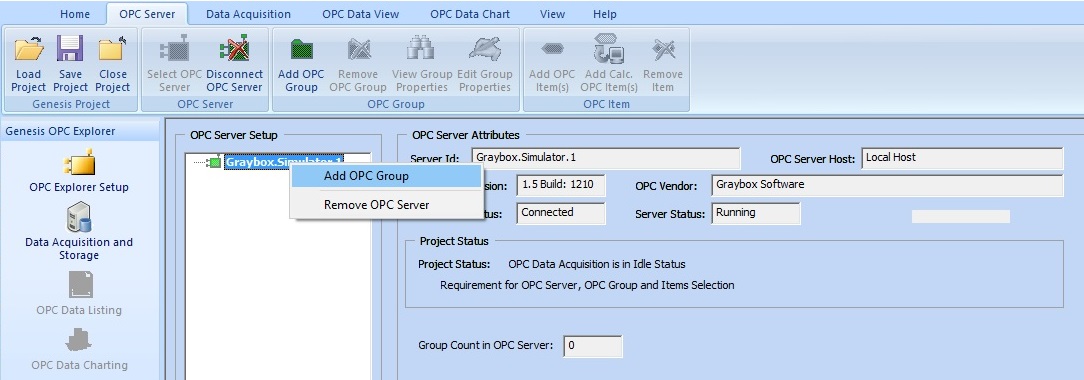 Addition of the OPC Group Two methods are available to modify an existing OPC Group:

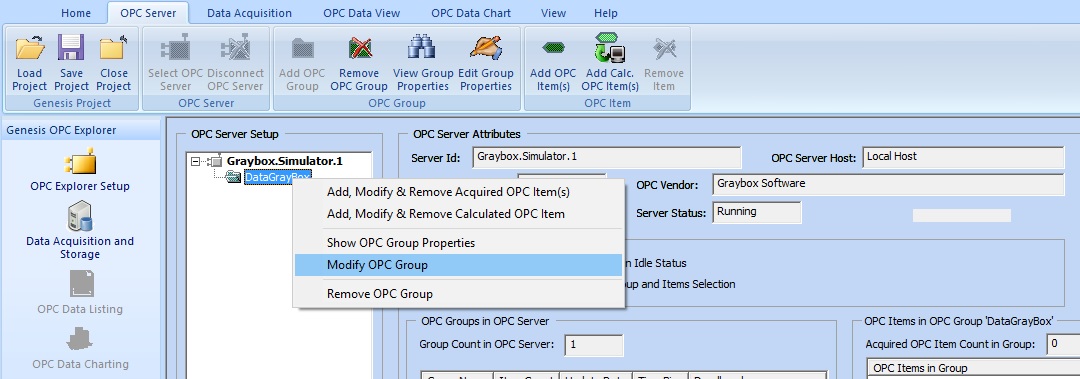 Modification of the OPC Group 3. Removal of OPC Group Two methods are available to start the OPC Group Removal

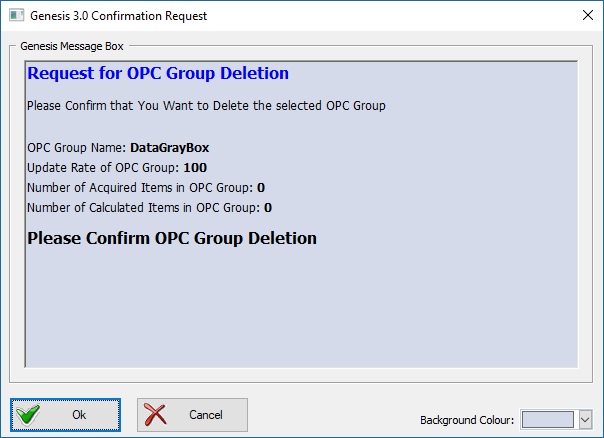
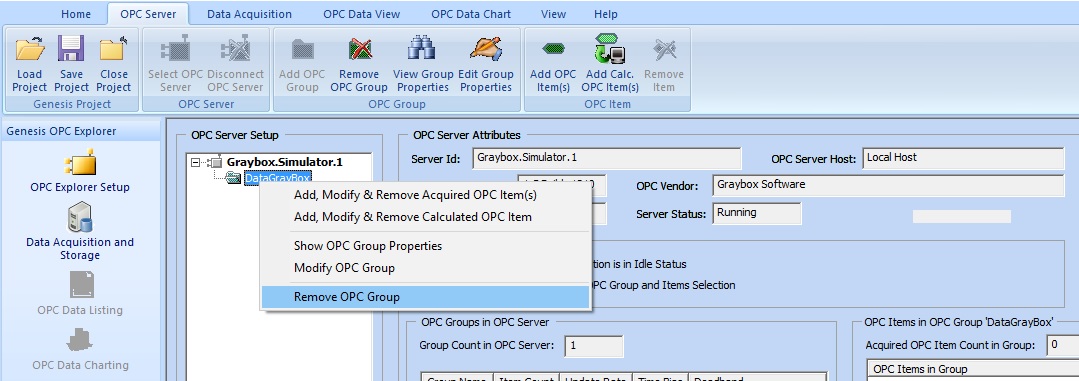 Removal of the OPC Group |
Tell your Friends about Genesis OPC Explorer 3.1 Visitors Count: 35117 |
||||||||||||||||||||||||||