| About Genesis OPC Explorer 3.1 |
|
|
| IDE: | MS Visual Studio 2017 |
| Appl. Size: | 11.8 MB (12.386.304) |
| Creation Date: | 20-Oct-2018 18:09:18 |
| Installer Size: | 6.70 MB (7.025.823 bytes) |
| Installer Date | 20-Oct-2018 18:43:37 |
Genesis OPC Explorer 3.1 Menu
Genesis OPC Explorer 3.1
Fast Track
What's New in Release 3.0
Feedback and Awards
Download Counters
Download Genesis OPC Explorer 3.1
Safe Use of Genesis OPC Explorer 3.1
Genesis History
Genesis OPC Explorer Setup
Select OPC Server
Manage OPC Groups
Manage Acquired OPC Items
Manage Calculated OPC Items
Load OPC Project
Save OPC Project
Close OPC Project
Data Acquisition and Storage
Start Data Acquisition
Resume Data Acquisition
Stop Data Acquisition
Display Performance Data
Acquisition Data Matrix
OPC Data Listing
Display of OPC Data Listing
Export OPC Data
Export to Clipboard
Toggle Performance Display
Configure Types Color
OPC Data Charting
Display of OPC Data Chart
Set Chart Series Colour
Set Chart Title Options
Manipulate Chart Display
Set Series Selection
Set Chart Axis
Set Chart Legends
Save Chart Image as File
Save Chart Image to Clipboard
Enable Cursor Data
Toggle Server Data Display
Registration and Support
Register Genesis OPC Explorer 3.1
Support of Genesis OPC Explorer 3.1
Register Support of Genesis OPC Explorer 3.1
 |
Thanks for bringing support to TGMDev |
| through PayPal Donations... |
 |
|
|
|
|
Export OPC Data to File
OPC Data acquired during an active session of Genesis OPC Explorer 3.1 can be exported, at any time, to a csv file:
- Click on the Button 'Export OPC Data to File' in the Ribbon Tab 'OPC Data View'

The Export File Dialog Box guides you to set up the csv file for OPC Data Export. Most of the settings can be
accepted by default.
The active tab has a title displayed in Blue while tab with missing setup data
has a title displayed in Red .
- OPC Data Export Scope
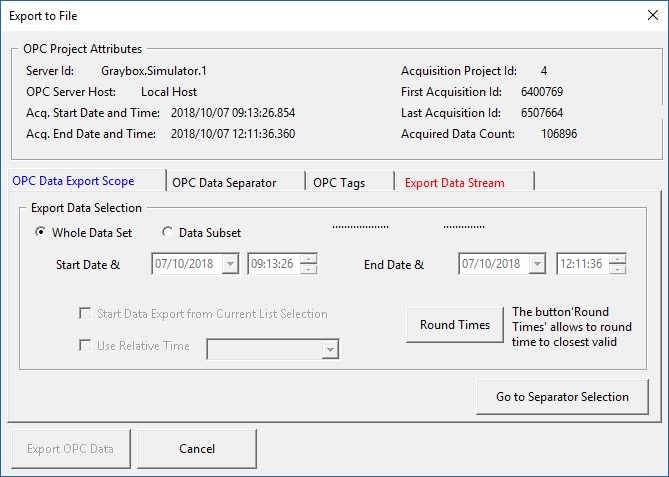 OPC Data Export - Setup Export Scope
Two export scopes are available:
- Whole Data Set: Export all the data available at the time of export (this is the default setting)
- Data Subset: Export the OPC Data from the Start Time to the End Time
- The Start and End Date and Time can be entered from the different controls.
- If data are selected in the OPC Data List, the check box 'Start Data Export from Current List Selection' allows
to set the start date and time automatically from the OPC Data listing selection
- The check box 'Use Relative Time' allows the automatic definition of the End Date and Time from the Start Date and time
- The button 'Round Times' is used to get consistent (that is, within the date and time of current date set) rounded
times (that is seconds set as zero)
- OPC Data Separator
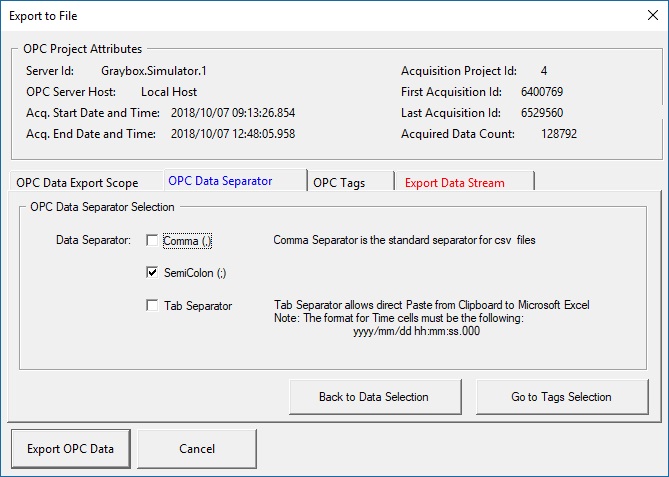 OPC Data Export - Setup Separator
Three separators are available:
- Comma (,)
- SemiColon (;)
- Tab
- OPC Tags
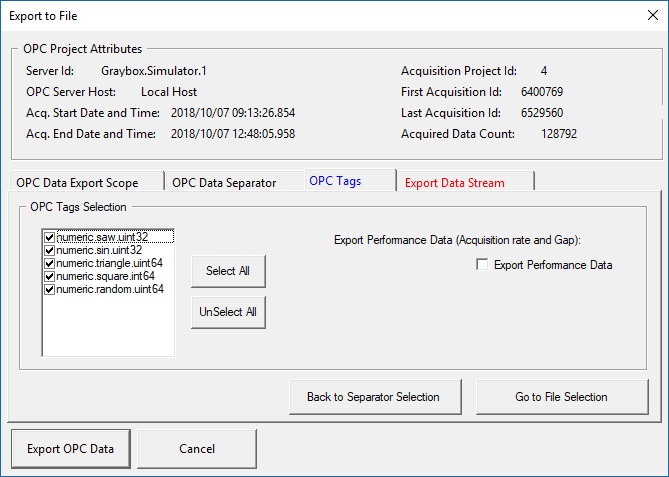 OPC Data Export - OPC Tags
The OPC Tags are listed and can be selected individually or globally.
There is an option to export the performance data (actual acquisition rate and acquisition gap)
- Export Data Stream
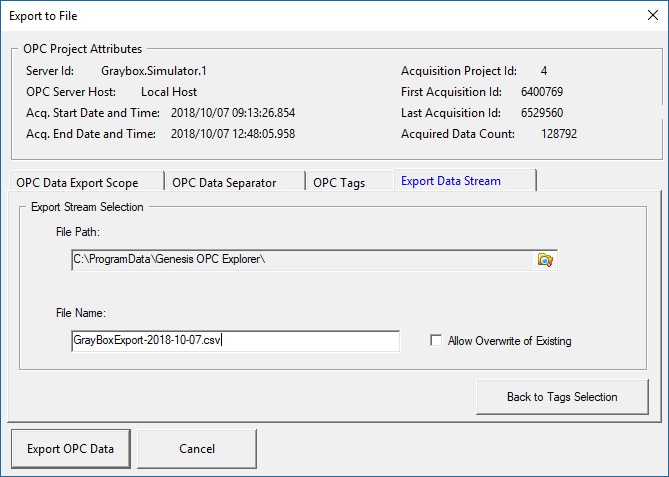 OPC Data Export - Export Data Stream
A File path is provided by default but it can be changed using the standard Browse button. The file name needs to be
entered manually (the file extension is added automatically)
There is an option to allow file overwrite in case of already existing file in the selected path
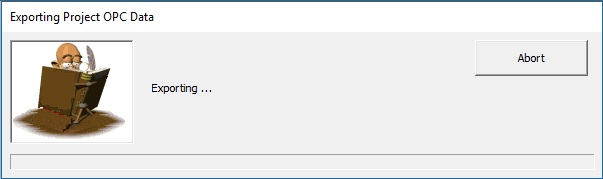
- Click on the Button 'Export OPC Data' to start Export to File
|
|
|
|
Tell your Friends about Genesis OPC Explorer 3.1
Visitors Count: 35117
|