Windows Utilities

| Windows Utilities | |
PhotoRenamer 4.1 |
|
Tell your Friends about PhotoRenamer 4.1 PhotoRenamer 4.1 Menu Fast Track Help Video: Quick Tour What's New in PhotoRenamer 4.1 Feedback and Awards of PhotoRenamer 4.1 Download Counters of PhotoRenamer
Safe Use of PhotoRenamer 4.1 TGMDev PhotoRenamer History Renaming Mask Fast Track Renaming Photos with PhotoRenamer 4.1 Mask Format Specifications Edition of Renaming Masks of PhotoRenamer 4.1 Handling of Duplicates File Extension Files Selection Fast Track Files Selection Help Video Special Specifications Fast Track Keywords Specifications Keyboard Entries Specification Picture Counter Specifications Meta Data Exif Meta Data IPTC Meta Data User Interface Fast Track Ribbon Category 'Home' Ribbon Category 'Photo Rename' Ribbon Category 'Details' Ribbon Category 'Options' Ribbon Category 'View' Ribbon Category 'Help' Registering, Feedback and Support Registering PhotoRenamer 4.1 Feedback about PhotoRenamer 4.1 Support of PhotoRenamer 4.1
|
Keyboard Entries Format Specification of PhotoRenamer 4.1 The format specification %KI allows the entry of free text at the time of photo renaming. The different entries are stored in the PhotoRenamer 4.1 database but, unlike keywords, have not the possibility of being abbreviated. A. Simple Keyboard Entry To allow free text keyboard entry, Add the format specification %KI to the renaming mask and
On Applying the renaming mask containing the specifications %KI, the Keyboard Free Entry dialog box pops up. 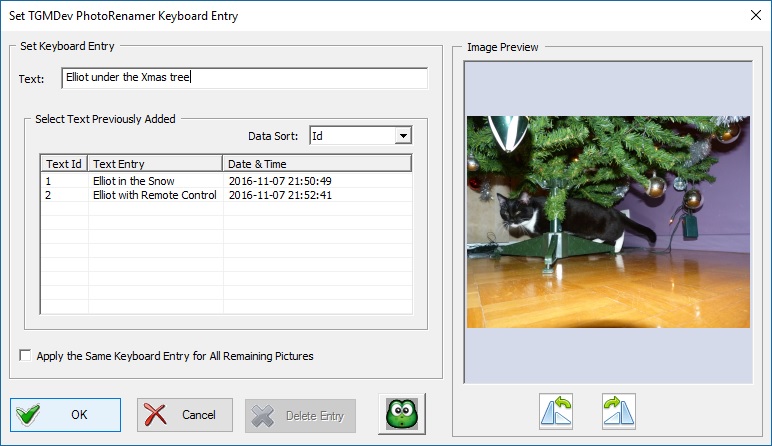
Either Type in a new free text or select a text from the Data Entry List and confirm by clicking on Ok. This process is repeated for every photo, so that different free text can be entered for every photo. B. Further Keyboard Entries
are useless. The only way to force a complete renewal of the keyboard entries is the following:
C. Individual Keyboard Entry Once the keyboard entries are done, right-click on a photo with free text to be changed and select the menu item 'Edit Applied Mask Data' 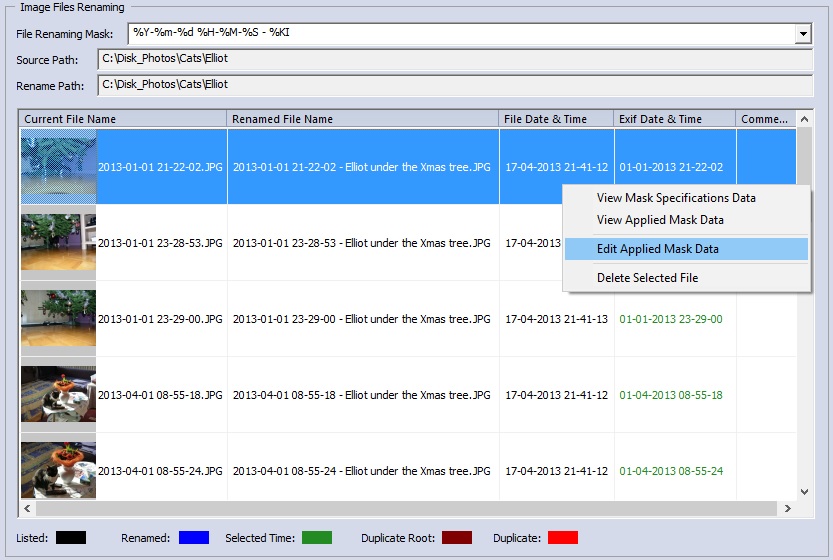
A dialog box pops up that allows the edition of dynamic format specification. 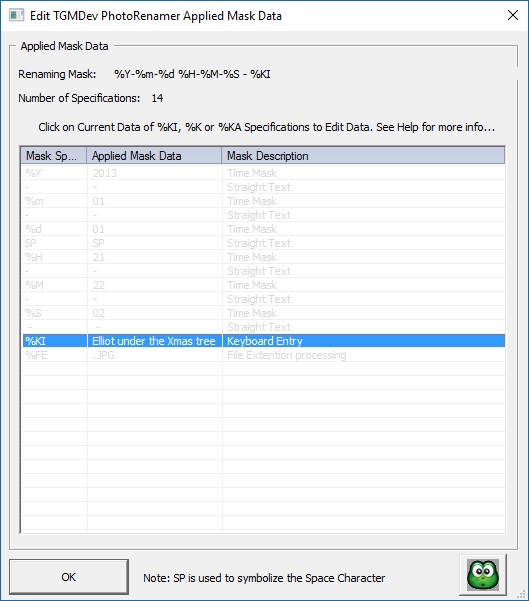
Click on the line containing the %KI specification and, as usual, either enter the free text or select an existing keyboard entry. |
|||||||||||||||||||||||||||||||||||||||||||