Tell your Friends about PhotoRenamer 4.1
PhotoRenamer 4.1 Menu
Fast Track
Help Video: Quick Tour
What's New in PhotoRenamer 4.1
Feedback and Awards of PhotoRenamer 4.1
Download Counters of PhotoRenamer
Safe Use of PhotoRenamer 4.1
TGMDev PhotoRenamer History
Renaming Mask
Fast Track
Renaming Photos with PhotoRenamer 4.1
Mask Format Specifications
Edition of Renaming Masks of PhotoRenamer 4.1
Handling of Duplicates
File Extension
Files Selection
Fast Track
Files Selection
Help Video
Special Specifications
Fast Track
Keywords Specifications
Keyboard Entries Specification
Picture Counter Specifications
Meta Data
Exif Meta Data
IPTC Meta Data
User Interface
Fast Track
Ribbon Category 'Home'
Ribbon Category 'Photo Rename'
Ribbon Category 'Details'
Ribbon Category 'Options'
Ribbon Category 'View'
Ribbon Category 'Help'
Registering, Feedback and Support
Registering PhotoRenamer 4.1
Feedback about PhotoRenamer 4.1
Support of PhotoRenamer 4.1
| About PhotoRenamer 4.1 |
|
Language: | Visual C++ |
| IDE: | Microsoft Visual Studio 2017 |
| App. Version: | 4.1 |
| Appl. Size: | 7.83 MB (8.219.136 bytes) |
| Creation Date: | 11-Mar-2018 19:36:26 (GMT+1) |
| Link Type: | Statically Linked |
| Installer Size: | 9.43 MB (9.892.153 bytes) |
| Installer Date: | 11-Mar-2018 19:39:15 (GMT+1) |
 |
Thanks for bringing support to TGMDev |
| through PayPal Donations... |
|
|
|
|
|
Fast Track to PhotoRenamer 4.1 User Interface
A. User Interface
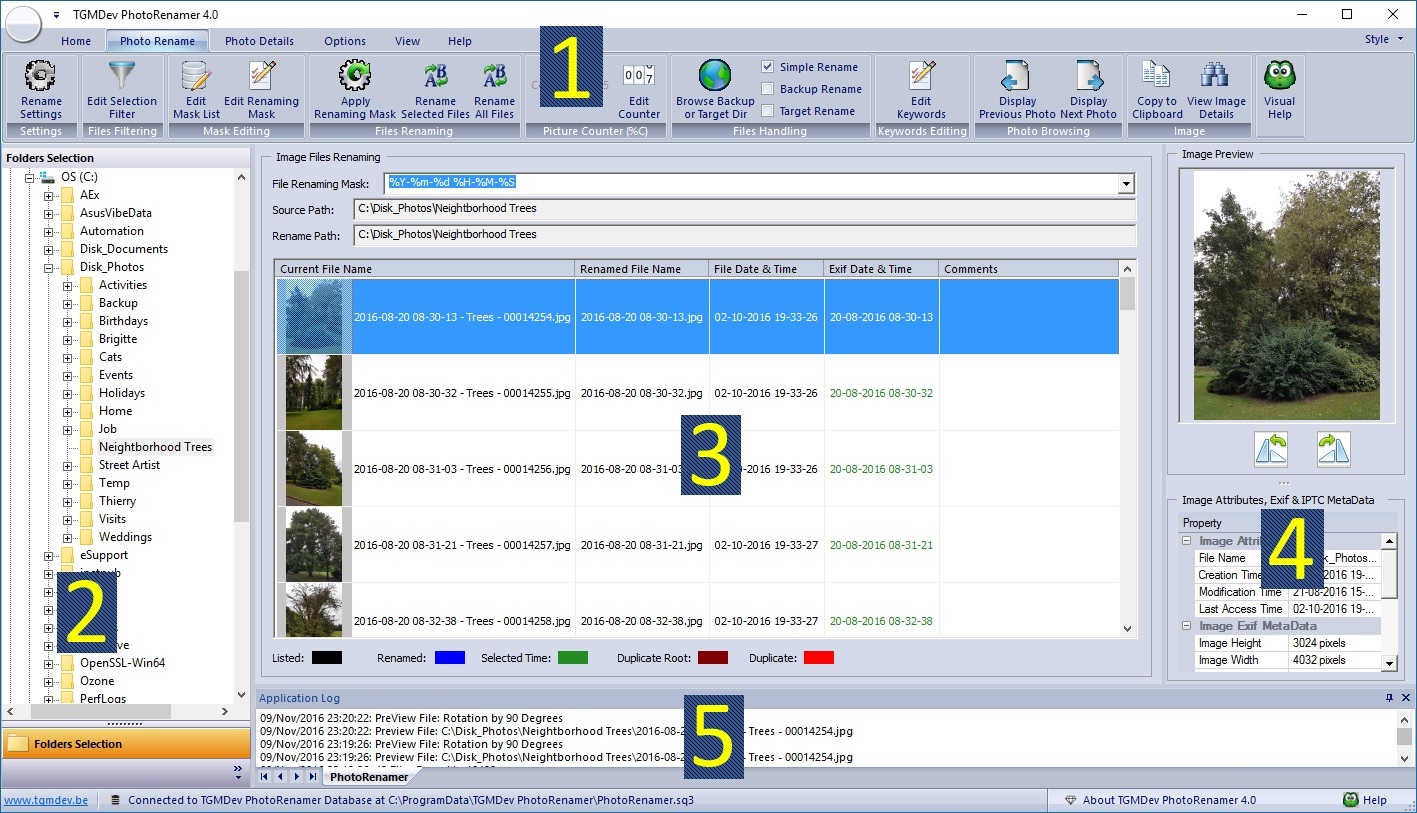
The PhotoRenamer 4.1 screen is made of five main parts:
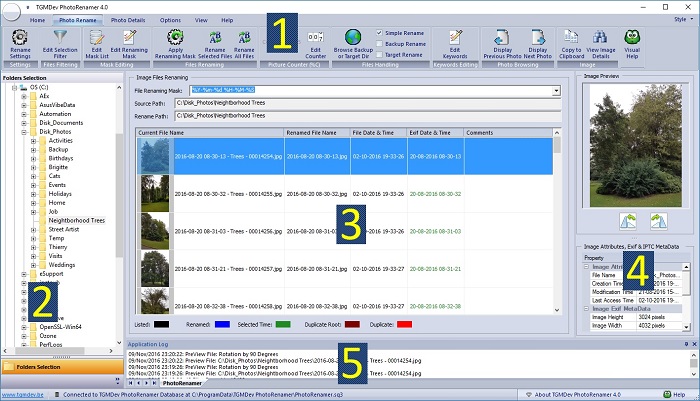
PhotoRenamer 4.1 Screen Overview
- Ribbon: Located on the top of the screen, the ribbon is the standard paradigm of user interface. Buttons and other controls are enabled/disabled according to the active view
and the user's actions.
- Navigation Control: Located on the left pane of the screen, this control is used to select the directory containing the file(s) to rename.
- Main Views: PhotoRenamer 4.1 handles two data views:
- Files Renaming View: This view is used to rename the files selected from the Navigation Control located on the Left Pane.
- File MetaData View: This view is used to display the MetaData (Exif and IPTC) of the Current File.
- Image Preview: Located on the right side of the screen, this window is used to preview the currently selected file and display its main attributes.
- Output Pane: The Output Pane, located on the bottom of the views, is the control where PhotoRenamer 4.1 adds constantly action log and
operational information. Most failure of file renaming are indicated in this control.
B. PhotoRenamer 4.1 Ribbon
PhotoRenamer 4.1 is controlled using the ribbon located on the top of the screen.
- The Home Category: close the application, get support or give feedback, donate to support TGMDev or learn about PhotoRenamer

PhotoRenamer 4.1 Ribbon
- The Photo Rename Category: select filter, edit mask, rename files, select renaming types, edit keywords, browse files and copy photos to clipboard

PhotoRenamer 4.1 Ribbon
- The Details Category: rotate photo, copy photos to clipboard, browse the photos listing and give highlight of the photos attributes

PhotoRenamer 4.1 Ribbon
- The Options Category: modify options, set files colour, rotate view and view help

PhotoRenamer 4.1 Ribbon
- The View Category: hide/show preview, hide/show status bar, hide/show Output Pane, hide/show Tooltip and view help

PhotoRenamer 4.1 Ribbon
- The Help Category: give feedback, check for update, browse to Web site, give TGMDev support ann show About box

PhotoRenamer 4.1 Ribbon
|
|
|
|
|