

Back to Index Page
Back to TGMDev
Windows Utilities
PhotoRenamer 4.1: a free powerful photo renaming tool
Back to Parent Page
Icon by Freepik
Modified with Onlinegiftools

PhotoRenamer 4.1 Menu


Renaming Mask


Files Selection


Special Specifications


Meta Data


User Interface


User Interface

Animated Icon from animatedimages.org

Complete Format Specifications of PhotoRenamer 4.1

The renaming masks of PhotoRenamer 4.1 are strings of characters that contains format specifications that will define how the original file name will be renamed. Format specifications always start with the character % (Percent) followed by either a single character or a character and a length specifier.

PhotoRenamer 4.1 proposes 53 Format specifications to build the renaming masks.

To illustrate the use of these specifications, the mask formats will be applied to a sample photo with original name IMG_01234 taken on monday 10 Octobre 2016 at 08:54:01 and saved afterwards on Saterday 5 November 2016 at 15:24:18. This sample photo is supposed to have been taken with a camera able to save Exif MetaData

Important Reminder: A Windows File can't contain any of the following characters: \/:*?\"<>|. The same restrictions apply to the renaming masks !!!

1. Simplified Data and Time

These specifications are used to simplify the standard date and time part of the renaming masks. The default renaming mask of PhotoRenamer 4.1 is the expanded version of the specification %DT3.

 Specification  Description Application to Sample Photo  
 %DT3 Standard Renaming Mask of PhotoRenamer 4.0 - Equal to %Y-%m-%d %H-%M-%S 2016-10-05 08-54-01
 %DT2 Standard Renaming Mask of PhotoRenamer 2.0 - Equal to %d-%b-%Y-%H-%M-%S 05-Oct-2016 08-54-01
 %DT1 Base ISO 8601 Standard Mask - Equal to %Y%m%dT%H%M%S 20161005T085401
 %DTE Extended ISO 8601 Standard Mask - Equal to %Y-%b-%dT%H.%M.%S 2016-Aug-05-24T08.54.01


2. File Name Masks

These specifications are used retrieve the left and/or right part of the original file name. Note that the specification %C can be used as an alternative to the numbering system obtained using (classically) the %Rx specification.

 Specification  Description Application to Sample Photo  
 %F Complete Windows File Name  IMG_01234
 %Lx Left Part of the File Name (x: Char Number from 1 to 9) %L3 -> IMG - %L4 -> IMG_
 %Rx Right Part of the File Name (x: Char Number from 1 to 9) %R5 -> 01234


3. Keyboard Entry Mask

This specification triggers the launch of a dialog box to enter some free text for every photos to rename
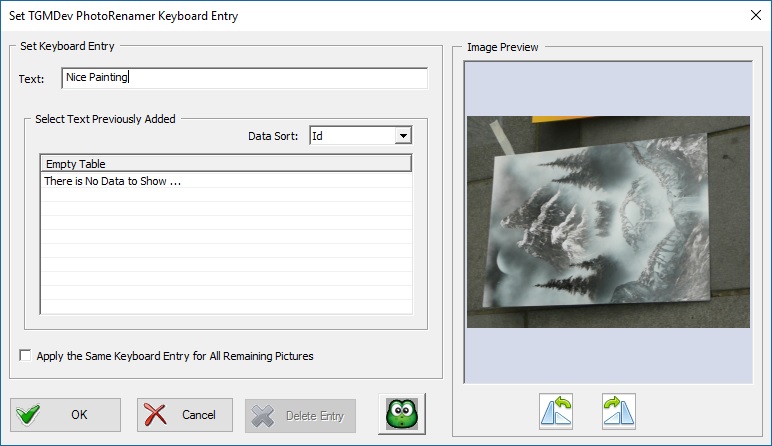
PhotoRenamer 4.0 Keyboard Entry
PhotoRenamer 4.1 Keyboard Entry


 Specification  Description Application to Sample Photo  
 %KI Manual Keyboard Entry Data according to Entry


4. Keyword Selection Mask

These specifications are used to select existing keyword or abbreviated keyword. This feature allows the use of consistent wording across different set of photos. It triggers the launch of a dialog box to select existing keyword or abbreviated keyword from the PhotoRenamer 4.1 database.

 Specification  Description Application to Sample Photo  
 %K Manually Selected Keyword from Database Data according to Selection
 %KA Manually Selected Abbreviated Keyword from Database Data according to Selection
 %Kx Keyword Retrieved Automatically from Database (X: 1 to 999) Data according to Keyword Id
 %KAx Abbreviated Keyword Retrieved Automatically from Database (X: 1 to 999) Data according to Keyword Id


5. Picture Counter

These specifications give a specific number, incremented automatically, to every photo renamed by PhotoRenamer 4.1. The counter base can be changed manually to fit peculiar needs.

 Specification  Description Application to Sample Photo  
 %C Picture Counter with 8 digits (padded with 0) - Equivalent to %C8 Figure according to Counter Value
 %Cx Picture Counter with x digits (padded with 0) with x from 6 to F (F=15) Figure according to Counter Value


6. Complete Date and Time

These specifications allows to add individual parts of the date and time, using different data format.

Remind that, to illustrate the use of these specifications, the mask formats will be applied to a sample photo with original name IMG_01234 taken on monday 10 Octobre 2016 at 08:54:01 and saved afterwards on Saterday 5 November 2016 at 15:24:18. This sample photo is supposed to have been taken with a camera able to save Exif MetaData

 Specification  Description Application to Sample Photo  
 %y Year without Century (as a two-digits number) using Exif Data (or File Data if Not Available) 16
 %Ey Year without Century (as a two-digits number) using Exif Data (or 01-Jan-2000 if Not Available) 16
 %Wy Year without Century (as a two-digits number) using File Data (if Available) 16
 %Y Year with Century (as a four-digits number) using Exif Data (or File Data if Not Available) 2016
 %EY Year with Century (as a four-digits number) using Exif Data (or 01-Jan-2000 if Not Available) 2016
 %WY Year with Century (as a four-digits number) using File Data 2016
 %b Abbreviated Month Name (as a three-letters string) using Exif Data (or File Data if Not Available) Oct
 %Eb Abbreviated Month Name (as a three-letters string) using Exif Data (or 01-Jan-2000 if Not Available) Oct
 %Wb Abbreviated Month Name (as a three-letters string) using File Data Nov
 %B Complete Month Name (according to Local Settings) using Exif Data (or File Data if Not Available) October
 %Bb Complete Month Name (according to Local Settings) using Exif Data (or 01-Jan-2000 if Not Available) October
 %WB Complete Month Name (according to Local Settings) using File Data November
 %m Month (as a two-digits number) using Exif Data (or File Data if Not Available) 10
 %Em Month (as a two-digits number) using Exif Data (or 01-Jan-2000 if Not Available) 10
 %Wm Month (as a two-digits number) using File Data 11
 %a Abbreviated WeekDay Name (as a three-letter string) using Exif Data (or File Data if Not Available) Mon
 %Ea Abbreviated WeekDay Name (as a three-letter string) using Exif Data (or 01-Jan-2000 if Not Available) Mon
 %Wa Abbreviated WeekDay Name (as a three-letter string) using File Data Sat
 %A Complete WeekDay Name (according to Local Settings) using Exif Data (or File Data if Not Available) Monday
 %EA Complete WeekDay Name (according to Local Settings) using Exif Data (or 01-Jan-2000 if Not Available) Monday
 %WA Complete WeekDay Name (according to Local Settings) using File Data Saturday
 %d Day of Month (as a two-digits number) using Exif Data (or File Data if Not Available) 10
 %Ed Day of Month (as a two-digits number) using Exif Data (or 01-Jan-2000 if Not Available) 10
 %Wd Day of Month (as a two-digits number) using File Data 05
 %H Hour in 24-Hour Format (as a two-digits number - 00 to 23) using Exif Data (or File Data if Not Available) 08
 %EH Hour in 24-Hour Format (as a two-digits number - 00 to 23) using Exif Data (or 01-Jan-2000 if Not Available) 08
 %WH Hour in 24-Hour Format (as a two-digits number - 00 to 23) using File Data 15
 %I Hour in 12-Hour Format (as a two-digits number - 01 to 12) using Exif Data (or File Data if Not Available) 08
 %EI Hour in 12-Hour Format (as a two-digits number - 01 to 12) using Exif Data (or 01-Jan-2000 if Not Available) 08
 %WI Hour in 12-Hour Format (as a two-digits number - 01 to 12) using File Data 03
 %M Minute (as a two-digits number - 00 to 59) using Exif Data (or File Data if Not Available) 54
 %EM Minute (as a two-digits number - 00 to 59) using Exif Data (or 01-Jan-2000 if Not Available) 54
 %WM Minute (as a two-digits number - 00 to 59) using File Data 24
 %S Second (as a two-digits number - 00 to 59) using Exif Data (or File Data if Not Available) 01
 %ES Second (as a two-digits number - 00 to 59) using Exif Data (or 01-Jan-2000 if Not Available) 01
 %WS Second (as a two-digits number - 00 to 59) using File Data 18


7. File Extension

These specifications handles the case of file extension.

 Specification  Description Application to Sample Photo  
 %FE File Extension Left Unchanged (Added Automatically if Not Present in Mask) JPG
 %FEU File Extension as UpperCase .JPG
 %FEL File Extension as LowerCase .jpg


TGMDev
TGMDev

Download icon by Icons8