Windows Process Enumeration with KillProcess 4.3
Standard user and Administrator Process Enumeration
KillProcess 4.3 uses the standard and recommended way to enumerate the process(es) currently running in a computer with Windows 7 onward.
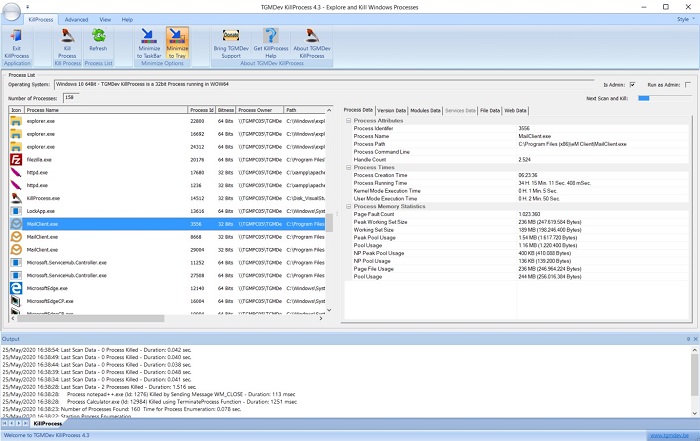
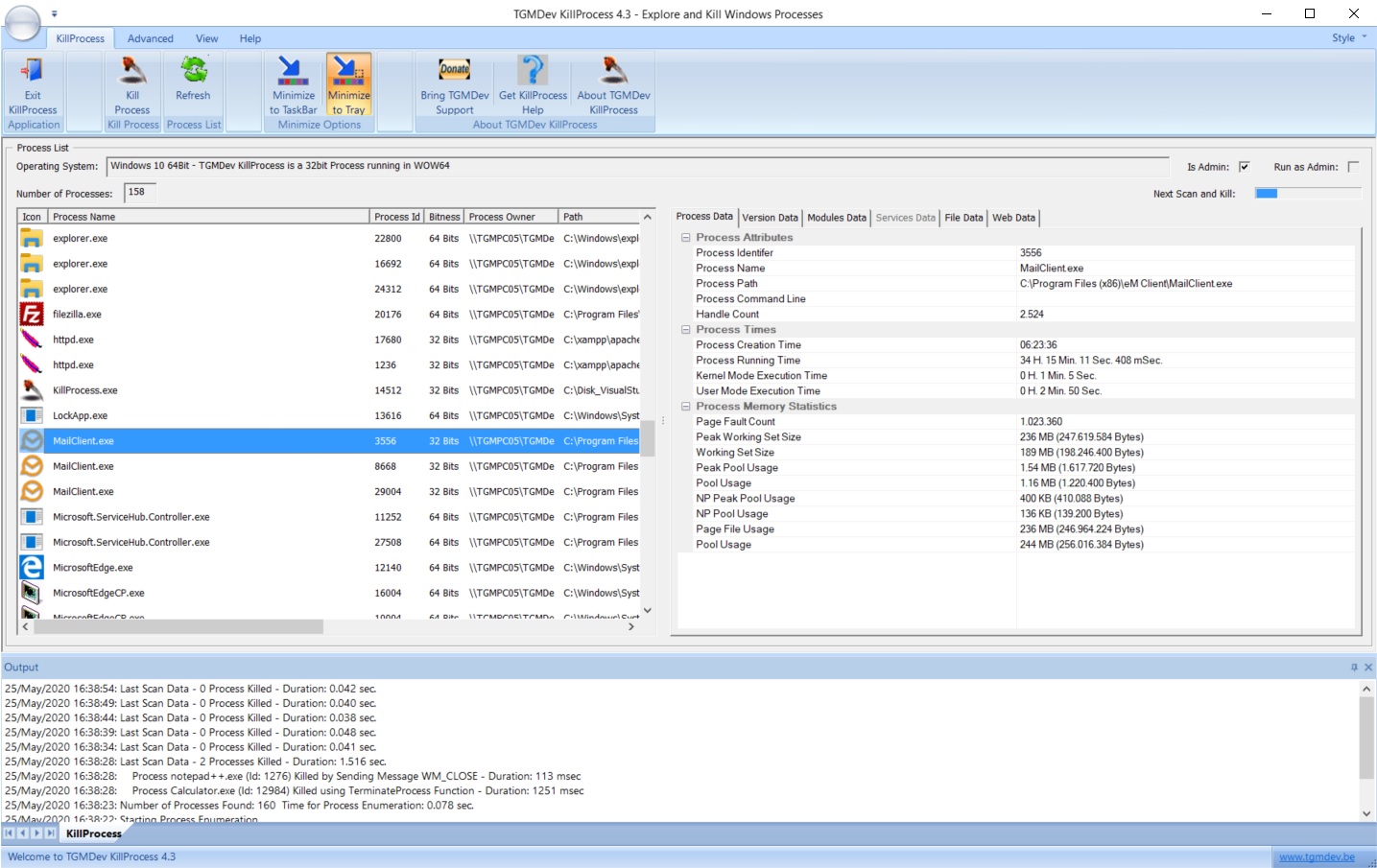
Remember that the process enumeration represents the situation at the time the snapshot is taken. If a new the process starts after the enumeration takes place, it does not appear in the application control. But, at anny time, process list can be updated by clicking the button 'Refresh' on the Ribbon Bar.


The actual processes enumerated by KillProcess 4.3 depends on the OS and on the user privileges. Complete Process Enumeration is possible when Running as an Administrator.
There are two ways to switch to the Administrator privilege:
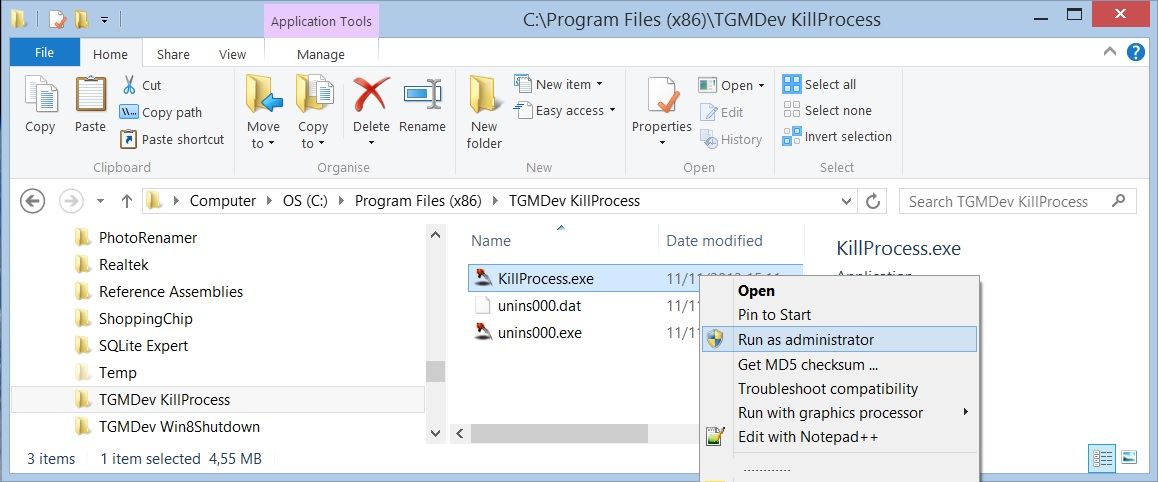
- Right-Click KillProcess.exe in Windows Explorer and Select the Menu 'Run as administrator'
- Select the Ribbon Category 'Advanced' and Click the Button 'Run as Admin' to Switch to Administrator Mode
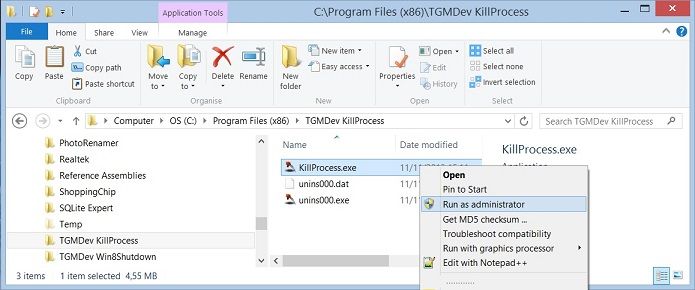


Notice that you need to confirm the switch to Admin Mode ...
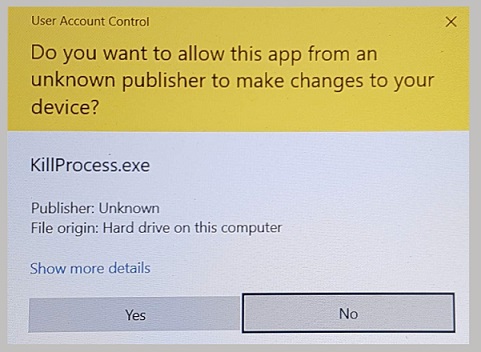
Note also that the amount of processes enumerated in Admin Mode is much large(Click on the image to enlarge) and concerns much more critical processes !!!
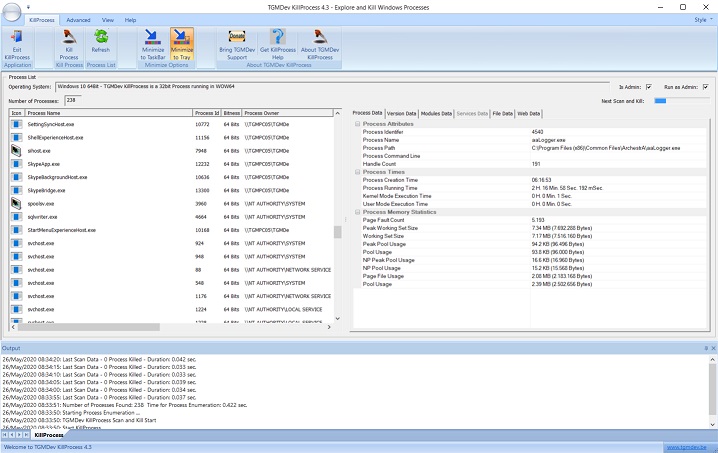
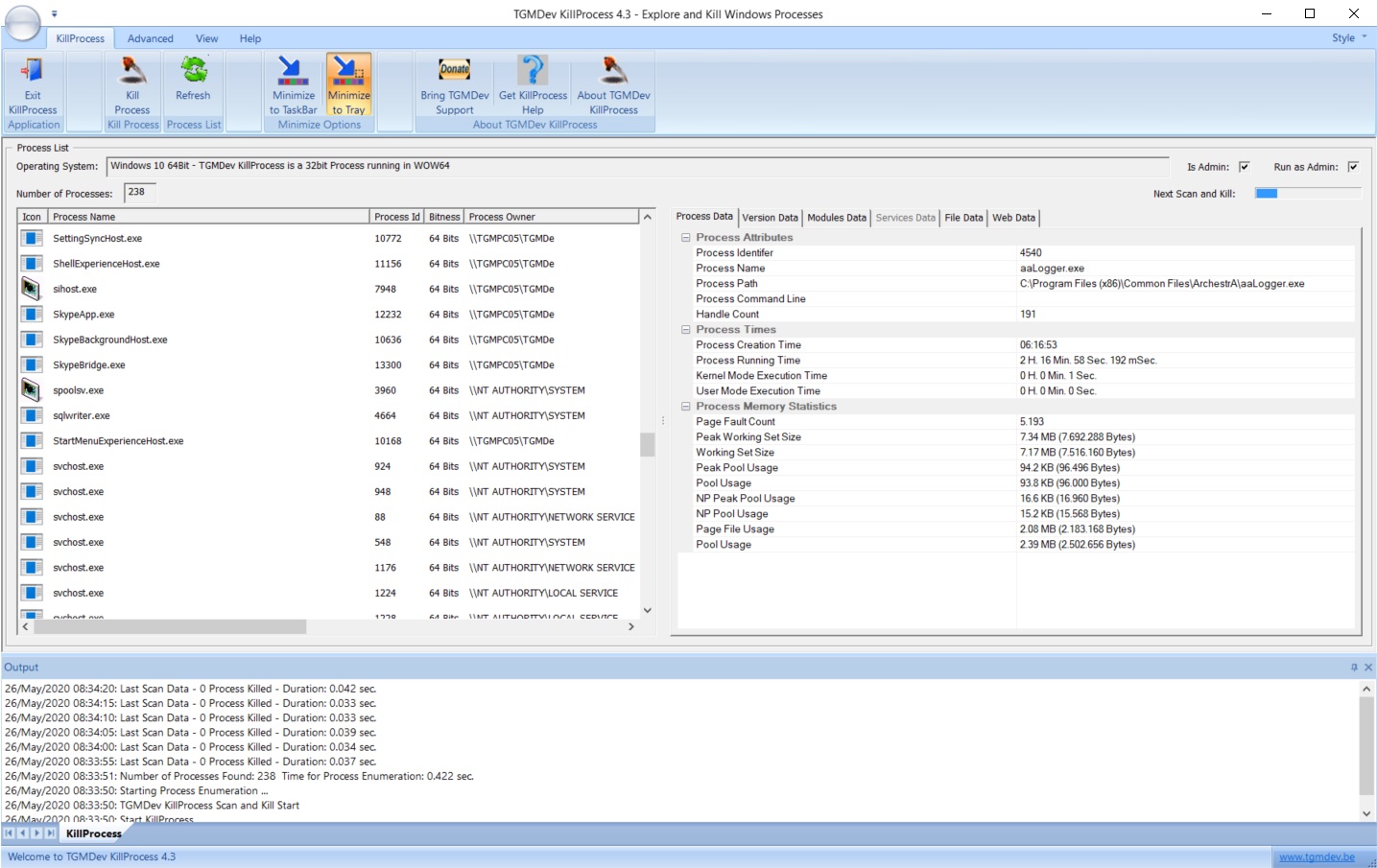
| Watch Out !!! In Admin Mode, All Critical Processes are Listed ... |
| Killing Critical Process could lead to a Forced Computer Reboot or a Blue Screen Crash ... |
Processes Enumeration: How it works
They are several ways to enumerate processes running in Windows space:- the Process Status Helper (PSAPI) library
- the ToolHelp32 API
- the undocumented ZwQuerySystemInformation function
- the performance counters
- the WMI (Windows Management Instrumentation) interface
KillProcess 4.3 uses the function ZwQuerySystemInformation to perform this enumeration.