
CyberSecurity Guide - 02 - Windows 11 Protected Print Mode
CyberSecurity Guide – Windows Protected Print Mode © TGMDev 2026 · Version 01.0 · November 2026
Author: Thierry Marneffe
Contact: tgmdev@skynet.be
Windows 11 Protected Print Mode↑ Back to top
Since the earliest versions of Windows (dating back to 1985), printing has relied on programs supplied by printer manufacturers (HP, Canon, Epson, Brother, etc.), known as drivers. These programs may install software components that run with significant privileges in Windows. As cyberattacks have evolved, this legacy architecture has become an important security concern and, in some circumstances, can enable remote execution of malicious code.
PrintNightmare is the collective name given to critical vulnerabilities discovered in the Windows printing system in 2021. Addressing these vulnerabilities required several rounds of security updates and additional protective measures.
To reduce this attack surface, Microsoft introduced Windows Protected Print Mode, an initiative to modernize printing and reduce security risks associated with legacy printer drivers. The practical impact depends largely on the printer model and its compatibility with modern standards, including Mopria certification. Chapter 4 examines these implications in detail.
Windows Protected Print Mode (WPP) is a security feature introduced in Windows 11 version 24H2. When enabled, it prevents the use of legacy third-party printer drivers (from HP, Brother and others) and requires the modern printing platform based on IPP. WPP applies to both home and business computers.
The following table summarizes the purpose of each component:
Three points are worth remembering:
- The transition is gradual. Legacy printer drivers will not all disappear overnight.
- Protected Print Mode is currently optional. Home users can retain their existing configuration.
- Scanning is a separate issue. Network scanning can still be performed independently of the printer driver.
How Protected Print Mode works↑ Back to top
The traditional model relies on manufacturer-specific drivers (HP, Brother, etc.) installed on the computer for each printer model.
The modern model uses IPP (Internet Printing Protocol), a standardized method of communication between Windows and compatible printers. It does not require the installation of a proprietary printer driver.
Despite its name, IPP does not mean that documents must travel over the Internet: it works on local networks and, where supported, compatible USB connections.
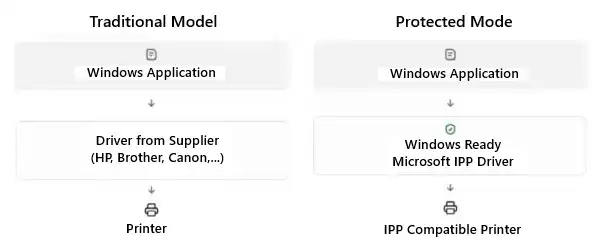
The role of WPP (Windows Protected Print Mode) is to:
- Block legacy third-party printer drivers (HP, Brother, etc.).
- Require the modern IPP-based printing platform.
Important note: enabling WPP may create a practical difficulty. Removing manufacturer-specific printer configurations can sometimes interfere with their usual scanning software. Fortunately, NAPS2 is a free, lightweight alternative that can scan documents without reinstalling the old printer drivers (see Chapter 6 and the NAPS2 instructions in Chapter 7).
WPP implementation timeline↑ Back to top
Windows Protected Print Mode (WPP) was introduced in 2024 with Windows 11 version 24H2. It was not enabled by default.
The following timeline outlines the planned stages of the transition:
This does not mean that older printers will stop working in July 2027. Existing drivers can still be used, and manufacturers can continue to offer their own installation packages. Microsoft is not abruptly removing all legacy drivers from Windows.
Microsoft has stated that Protected Print Mode will become the default at a later date, but has not announced an exact date.
Microsoft’s efforts to reduce vulnerable printer drivers and strengthen Windows security have one drawback: compatibility with older hardware. Fortunately, users with older printers can currently continue using the existing printing mode.
Before enabling Protected Print Mode with an older printer, check these three conditions:
- The computer is running Windows 11 version 24H2 or later.
- The printer has Mopria certification.
- IPP support is enabled on the printer.
Note: the printer may use a static IP address. A stable address can simplify network configuration and troubleshooting, but a static IP address is not a general requirement for WPP.
If the change does not work as expected, you can return to the previous printing mode. However, you may need to reinstall the original printer drivers.
Practical implications for Windows 11 users↑ Back to top
Protected Print Mode is designed for printers compatible with modern driverless printing standards, such as those with Mopria certification.
In practice, there are three main scenarios:

Mopria compatibility
Lack of support for modern printing standards does not mean a printer will stop working in 2027.
Existing drivers may still be used, and manufacturers may continue distributing their installation packages. Therefore, there is no need to replace a working printer simply because of these changes.
Enabling Protected Print Mode↑ Back to top
This chapter describes the steps used to enable Protected Print Mode on a Windows 11 Home laptop connected to a typical multifunction printer/scanner: the Brother DCP-L3550CDW.
The exact procedure may vary depending on your printer model.
Before making changes
Check that the printer supports Windows Protected Print Mode and make sure you can reinstall it if needed. Enabling WPP may remove printers configured with legacy drivers. If the device is multifunction, check its scanning capabilities separately.
A. Checking Mopria compatibility
- Open the Mopria certified-products page: https://mopria.org/certified-products
- Choose the manufacturer, product type and printer model (Product Name).
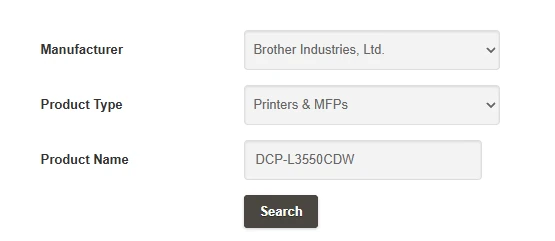
- Click Search.
- Check the results.
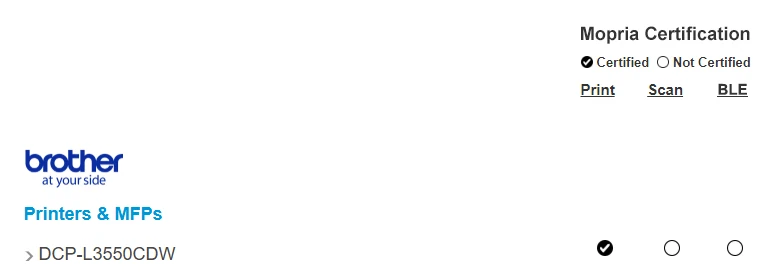
In the example shown, the Brother DCP-L3550CDW has the following certification results:
- Print: Mopria certified for printing.
- Scan: not Mopria certified for scanning.
- BLE: not certified for Bluetooth Low Energy features.
Note: Bluetooth Low Energy (BLE) can support device-discovery features for printers and scanners.
B. Checking the installed printer driver
- Open the Settings page of Windows
- Press Windows + I simultaneously.
- Click the Windows Start button.
- Click on the icon Settings in the Start menu

- Select Bluetooth & devices on the left.
- Select Printers & scanners on the right.


If the printer is already installed, you can check which driver it uses:
- Click the installed printer.

- Select Printer properties.

A window opens with several tabs showing printer properties: General, Sharing, Ports, Advanced, Color Management, and others.
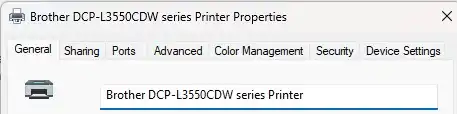
- Open the Advanced tab.
There are two possible situations:
- The selected driver is named after the printer (here, Brother DCP-L3550CDW series Printer). This indicates that the printer uses the manufacturer’s traditional driver.
- The selected driver is Microsoft IPP Class Driver. This means Windows is using its modern IPP driver instead of the manufacturer-specific printer driver.
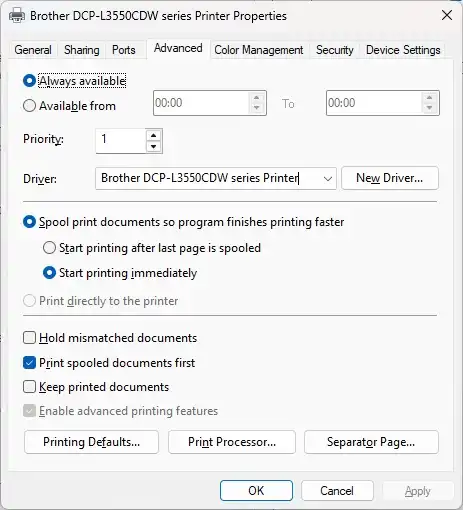
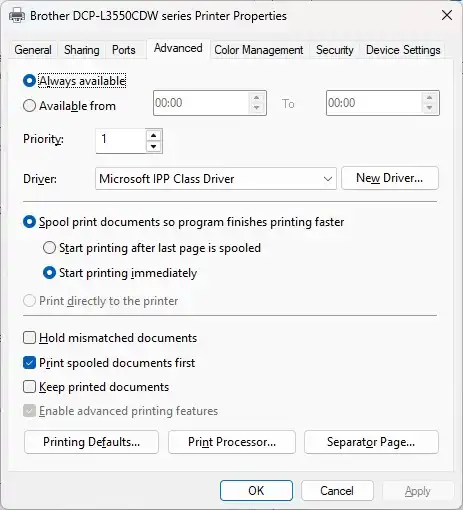
Important: using Microsoft IPP Class Driver does not necessarily mean WPP is enabled.
C. Switching the printer to the IPP driver
After checking Mopria compatibility, and before removing the printer, record any special settings and make sure you have a way to reinstall the original driver if necessary.
To replace a conventional driver with the IPP driver, follow these steps:
- Open the Settings page of Windows
- Press Windows + I simultaneously.
- Click the Windows Start button.
- Click on the icon Settings in the Start menu
- Choose Bluetooth & devices on the left.
Windows displays information about the printer at the top of the page. The details will vary by printer model.

- Click Remove.
The Bluetooth & devices page updates to reflect the change.
- Click Add device.
- Allow Windows to discover and install the printer, then connect it to the computer if needed.
The Bluetooth & devices page may not immediately show the icon indicating IPP support. Refresh the view as follows:
- Leave the Bluetooth & devices page by clicking the back arrow at the top left.

- Select Printers & scanners on the right.
- Check the printer configuration.

- Look for the shield icon with a green check mark, which indicates that the printer is compatible with Windows Protected Print Mode (WPP).

Note: some printer manufacturers recommend installing additional software, sometimes citing improved security. First check that your printer works correctly; consider additional software only when you need a particular feature or encounter a problem.
D. Enabling Protected Print Mode (WPP)
- Open Windows Settings.
- Open the Settings page of Windows
- Press Windows + I simultaneously.
- Click the Windows Start button.
- Click on the icon Settings in the Start menu
- Select Bluetooth & devices on the left.
- Choose Printers & scanners on the right.
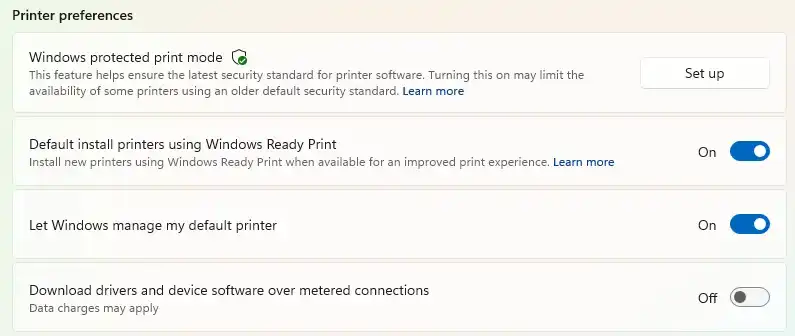
To simplify activation of WPP, check the following related setting:
- Install printers using Windows Ready Print by default.
The Let Windows manage my default printer setting is not required to enable WPP. You may prefer to select your default printer yourself.
With the first option enabled, setup should be straightforward.
- Click Set up.
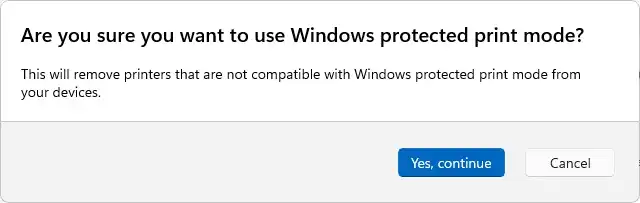
- Confirm by clicking Yes, continue.
Windows checks how enabling WPP will affect printers already configured on the computer. Some printers may no longer be available.
In the screenshot below, the OneNote printer is identified as incompatible with Protected Print Mode.
- Confirm by clicking Yes, continue.
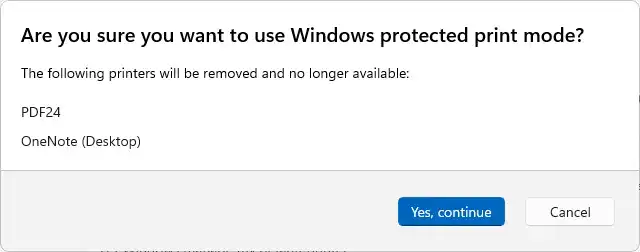
- Allow Windows to enable Protected Print Mode.
Note: once WPP is enabled, Install printers using Windows Ready Print by default is greyed out. The protected mode now enforces the modern printing platform.
The Windows Protected Print Mode setting then displays a Turn off button, allowing you to return to the previous printing mode if needed.
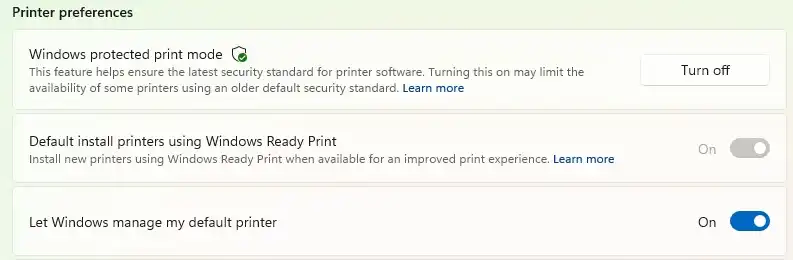
Windows may later recreate the OneNote virtual printer, depending on the Windows and OneNote versions. The compatible version is called OneNote (Desktop) – Protected virtual printer.
Limitations of Protected Print Mode↑ Back to top
Moving to Protected Print Mode can cause compatibility problems with some older printers. Scanning functions on multifunction printers may also be affected.
Without WPP, Windows allows the legacy and modern printing architectures to coexist. Enabling WPP introduces additional restrictions that can affect some devices and their associated software, including multifunction products.
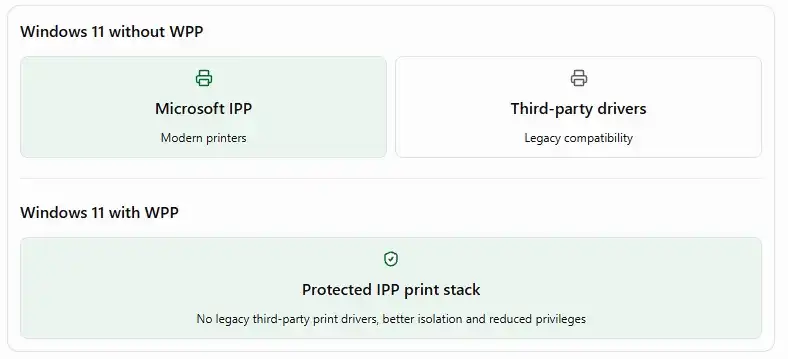
Windows Protected Print Mode (WPP) mainly protects the printing subsystem. Scanning may be disrupted when a multifunction device is removed or reinstalled, but WPP does not automatically disable all scanner drivers.
For that reason, check scanner compatibility separately. If necessary, use network scanning software such as NAPS2 with eSCL (see the next chapter).
One option is to use a scanning program that communicates over a network scanning protocol, independently of the Windows printing subsystem.
NAPS2 (Not Another PDF Scanner 2) is a particularly useful free and open-source application: lightweight, ad-free, and often easier to use than manufacturer utilities.
NAPS2↑ Back to top
NAPS2 is a scanning application that works with different types of scanners.
It can use several scanning interfaces:
- WIA: the Windows Image Acquisition scanning interface.
- TWAIN: a scanning interface commonly supported by scanner manufacturers.
- eSCL: a network scanning interface that does not require a dedicated manufacturer driver.
A. Downloading NAPS2
File: naps2-8.6.1-win-x64.exe (as of November 2026)
Size: 45.3 MB
- Click Download NAPS2.
Important!
Windows 11 includes settings that control the installation of applications on the computer.
Depending on your Windows 11 configuration, installing applications from outside the Microsoft Store may be restricted or trigger a warning. You can review and change this setting under Advanced app settings.
If your settings prevent the installation of an application obtained outside the Microsoft Store, you may need to change this Windows setting.
- Open the Settings page of Windows
- Press Windows + I simultaneously.
- Click the Windows Start button.
- Click on the icon Settings in the Start menu
- Choose Apps on the left.
- Select Advanced app settings on the right.

- Open the app installation-source dropdown. Its current value depends on your configuration.

- Choose Anywhere, but warn me before installing an app that’s not from the Microsoft Store.

With this setting, applications from outside the Microsoft Store can be installed, subject to the user’s confirmation when prompted.
Important: allowing applications from outside the Store does not guarantee their safety. Always verify the download source.
B. Installing NAPS2
- Double-click the downloaded installer.
- If prompted, confirm by clicking Install anyway.
- Select the language for installation.
- Accept the license agreement.
- Continue the installation using the suggested default settings.
Several connection methods are available. The eSCL protocol can connect to network scanners without a dedicated manufacturer driver, providing a practical option alongside WPP and reducing reliance on proprietary software.
C. Configuring NAPS2
- Start NAPS2.
On first launch, there are no saved scanner profiles. Create a profile for the scanner connected to your computer.
- Click New profile in the left-hand panel.

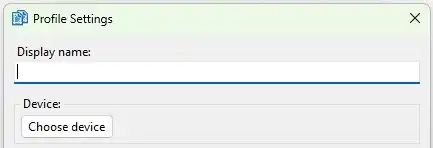
- In the profile settings dialog, click Choose device (or the equivalent device-selection button).
- Select the eSCL driver.
- Choose your scanner from the list.
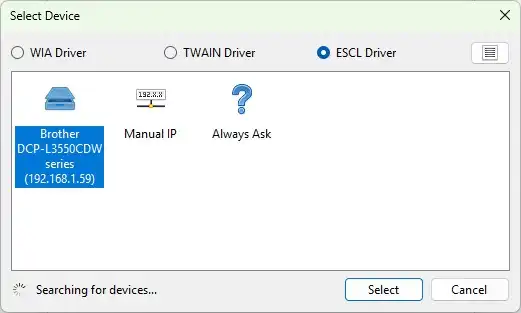
Note: if no eSCL-compatible scanner is detected, try the WIA (Windows Image Acquisition) or TWAIN interface. WIA is built into Windows, although some scanners still require device-specific support. TWAIN may rely on components supplied by different vendors.
- Adjust the scanning profile settings.
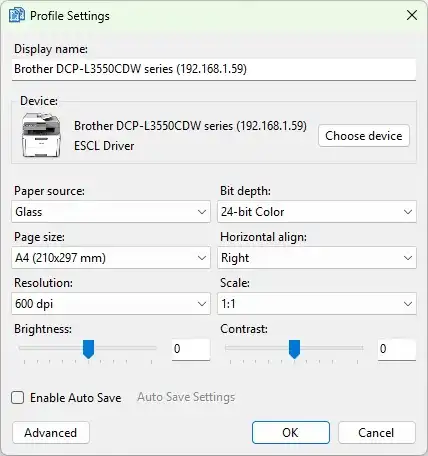
Note: the most useful initial settings are the paper size (usually A4 in Europe) and resolution: 300 dpi for ordinary documents or 600 dpi when greater detail is needed.
- NAPS2 then displays the newly created scanner profile.
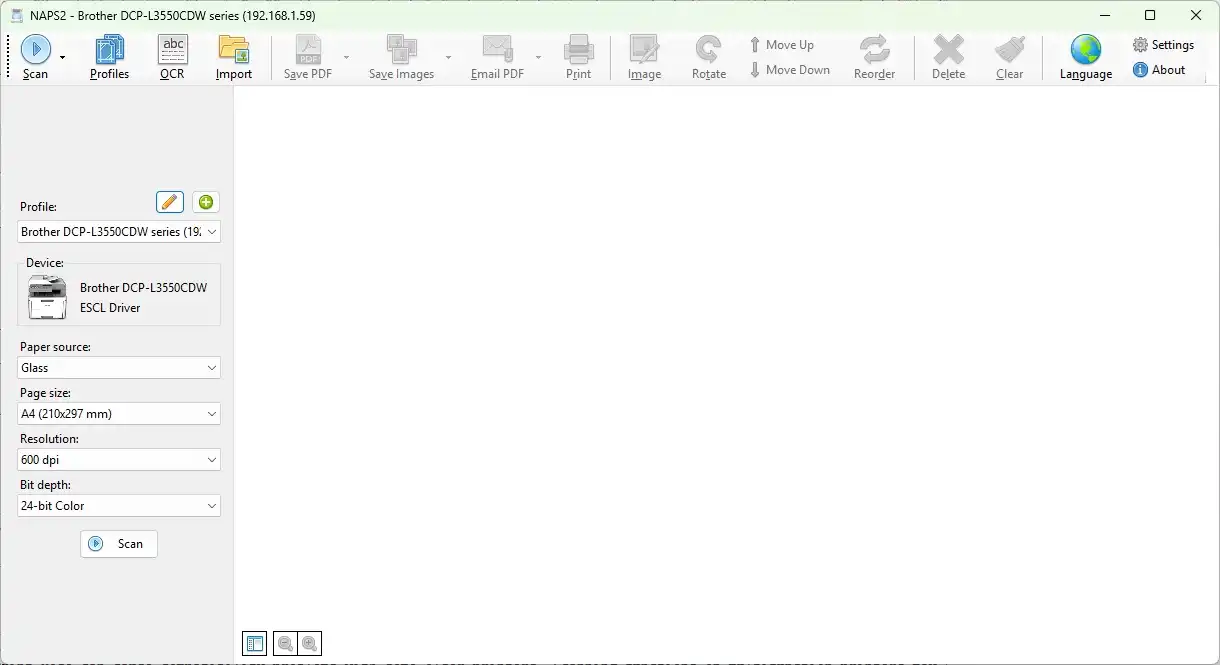
D. Scanning with NAPS2
- Click Scan to start scanning.
- Check the displayed result.
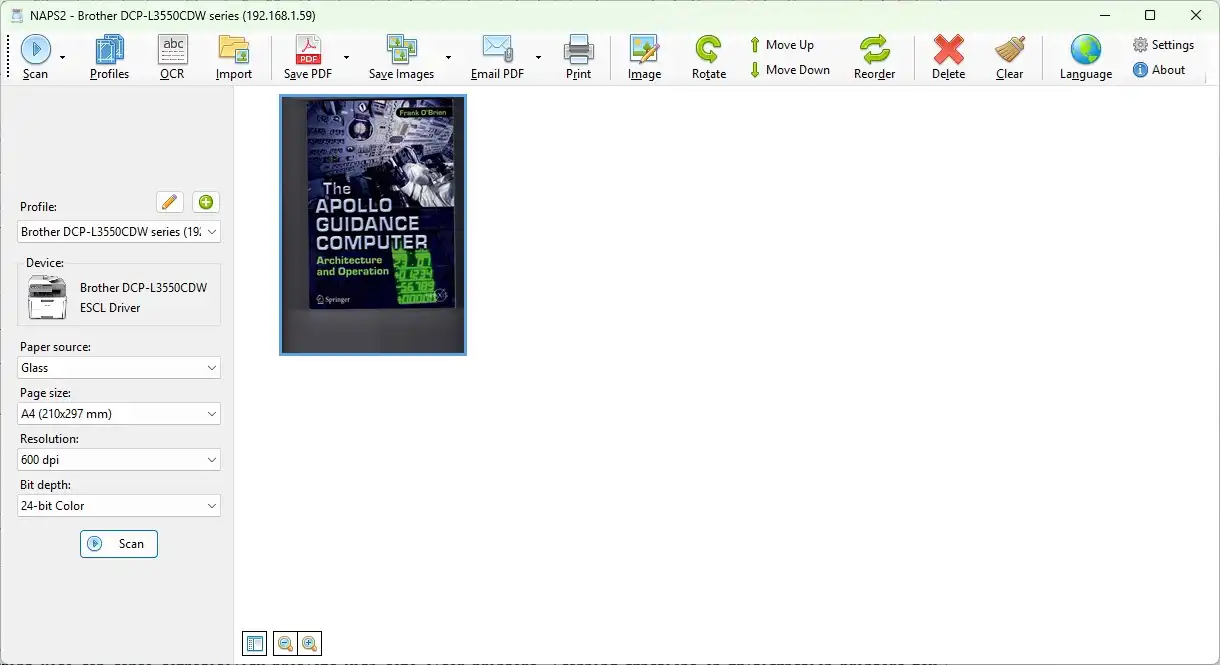
Many other functions are available, including OCR (text recognition), saving as PDF or image files, emailing scanned documents, and printing.
E. Summary
In this example, the printer connects through Ethernet and NAPS2 uses eSCL for scanning. This is a straightforward setup that works with Windows Protected Print Mode (WPP), with two separate standardized protocols that do not require proprietary printer software for everyday tasks.
Conclusions↑ Back to top
Windows Protected Print Mode significantly improves the security of printing in Windows 11. By reducing reliance on legacy proprietary printer drivers, Microsoft limits opportunities to exploit certain vulnerabilities.
This change does not mean that older printers must be replaced. Users can currently choose whether to enable this protection.
Before making changes, check compatibility with your printer and its features. For scanning, applications such as NAPS2 can often help keep existing scanners in service through standard protocols such as eSCL.
CyberSecurity Guide – Windows Protected Print Mode © TGMDev 2026 · Version 01.0 · November 2026
Auteur: Thierry Marneffe
Contact: tgmdev@skynet.be


